How to Use Seedr: A Beginner's Tutorial
What this tutorial covers
This is the first-ten-minutes tour of Seedr. You will create an account, add your first link, watch the file land in your cloud, play it in the browser viewer, and save a copy to your device. By the end, you will know the core loop — which is 90 percent of what most people ever do.
Prerequisites
- A web browser — any modern one (Chrome, Firefox, Safari, Edge).
- An email address.
- A link to something you want to save. Any share link, file link, or direct download URL works. If you do not have one handy, grab a free-to-redistribute sample (a Linux ISO is the classic).
No VPN needed. No desktop app. Free plan is enough to follow along.
Walkthrough
1. Sign up
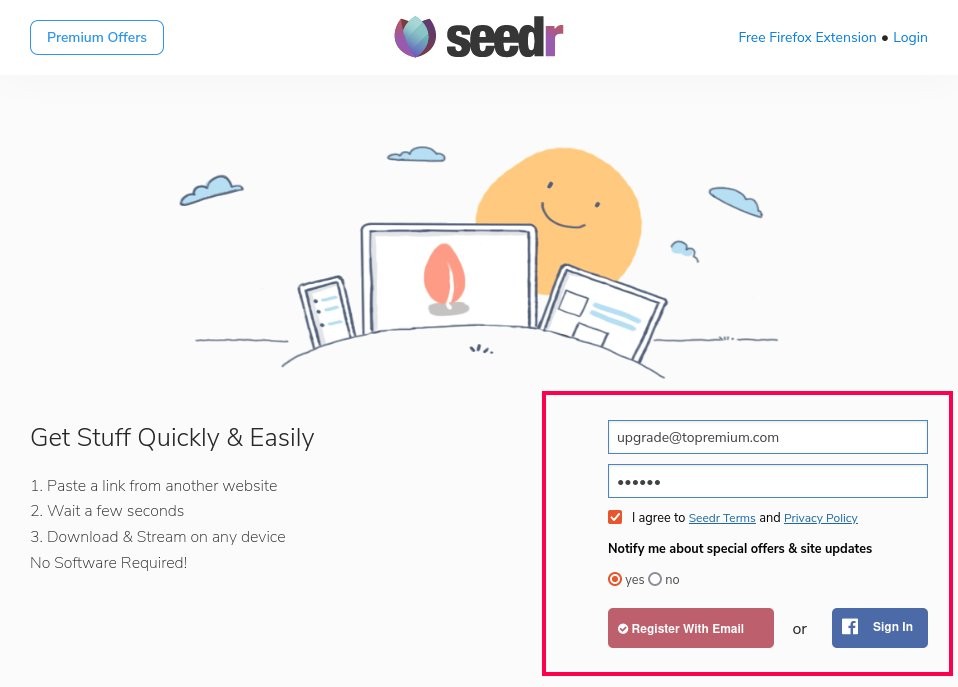
Go to /signup. Fill in the form — email, password, a captcha. Click Register With Email.
2. Activate your account
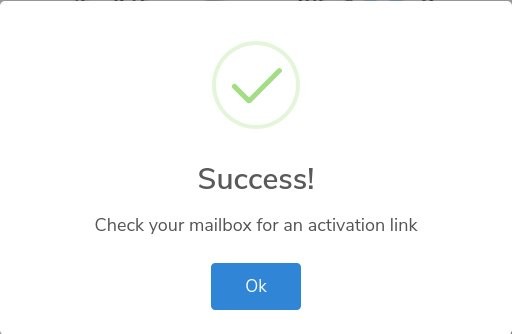
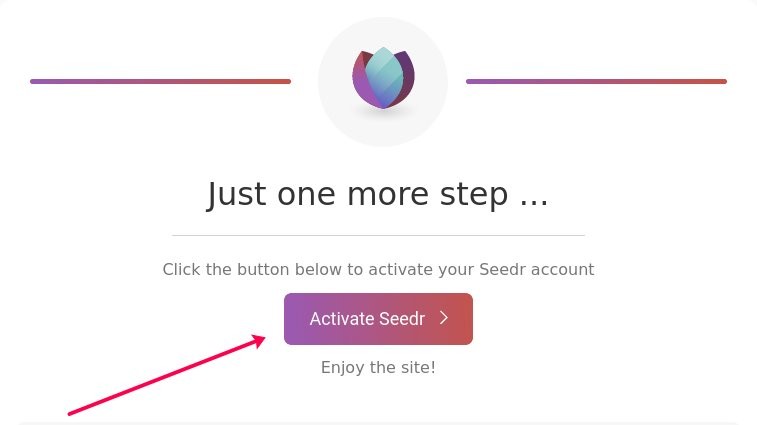
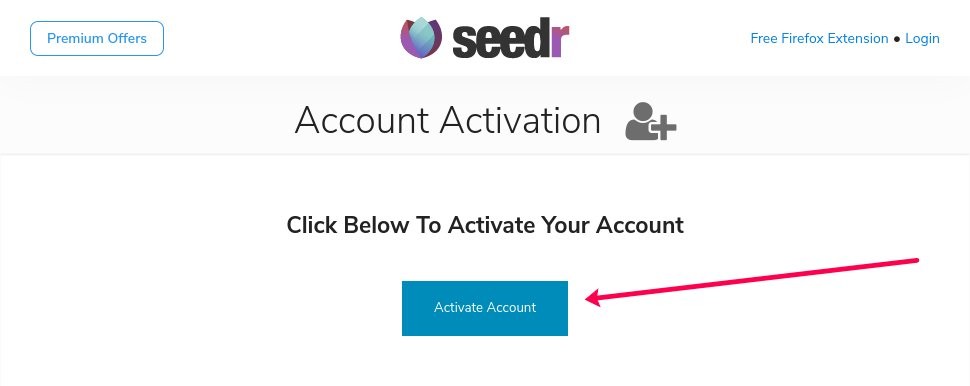
Check your inbox. Open the Seedr activation email and click Activate Seedr. The link takes you to Seedr and logs you in automatically.
If the email is slow, look in the spam folder. Activation emails sometimes land there.
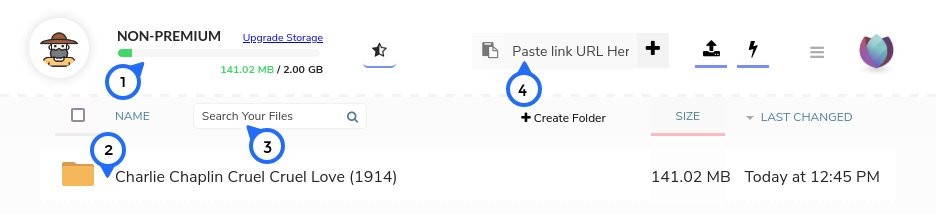
3. Meet the dashboard
Once in, you will see the main file view. The important pieces:
- Top-left — account status and upgrade link.
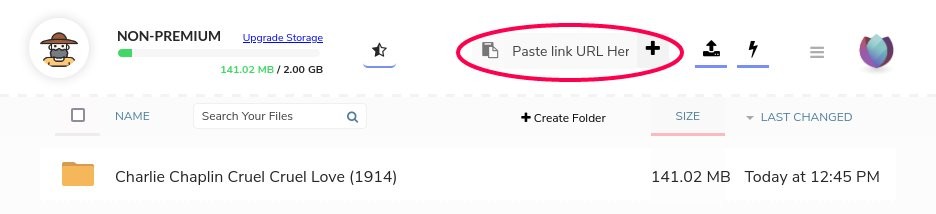
- Top bar — a link-paste field. This is where almost everything starts.
- Middle — your files and folders.
- Right side — search field.
There is usually a starter file already there so the screen is not empty.
4. Add your first link
Copy any share link, file link, or direct download URL. Paste it in the field at the top of the dashboard. Press Enter or click the + button.
If it worked, you will see Save added to home folder as a toast at the top. The file appears in your Tasks view and starts transferring.
If you see a warning that you do not have enough storage, either delete something or upgrade your account.
5. Watch it arrive
The transfer runs on Seedr's servers, not your machine. You can close the tab and come back — it will still finish. Progress shows in the Tasks row.
When the row flips to complete, the file is in your cloud and ready to use.
6. Open the file in the viewer
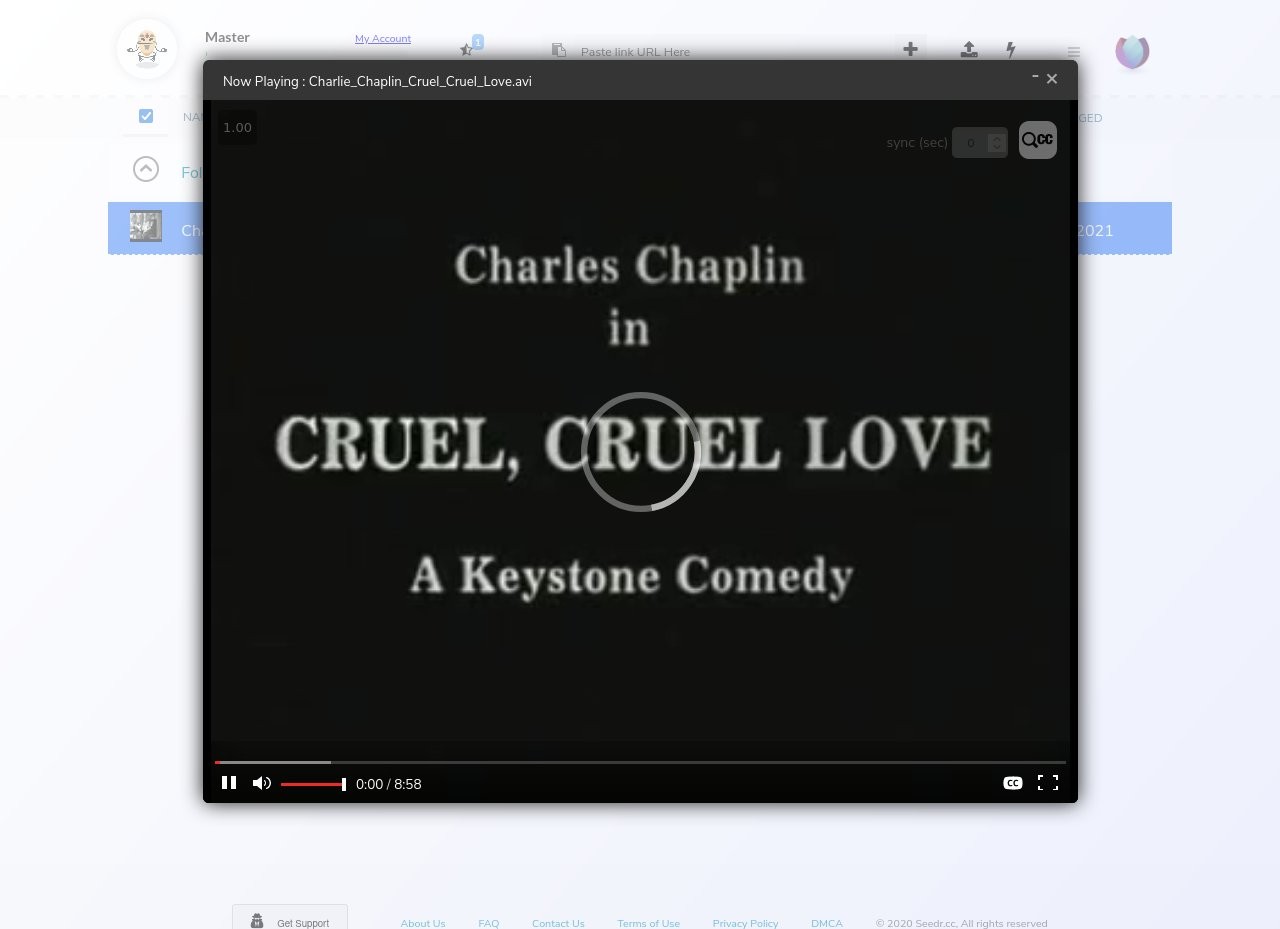
Click the file. If it is a video, audio file, PDF, or image, Seedr opens the built-in viewer. You can play, pause, seek, and for video, change quality and playback speed. See the media player features reference for the full control list.
For a folder, click to go inside. Click any file inside to open it.
7. Save a copy to your device
Sometimes the cloud is enough — you stream in the browser and never download. Other times you want a local copy.
Two ways:
- Hover and click the save icon. Quickest for a single file. Pick where on your device to save it.
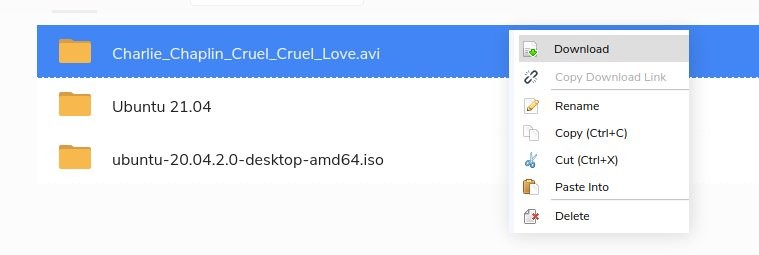
- Right-click → Save. Works on single files or folders. For multiple files or a folder, Seedr bundles them into a zip and saves that.
8. Pick multiple files
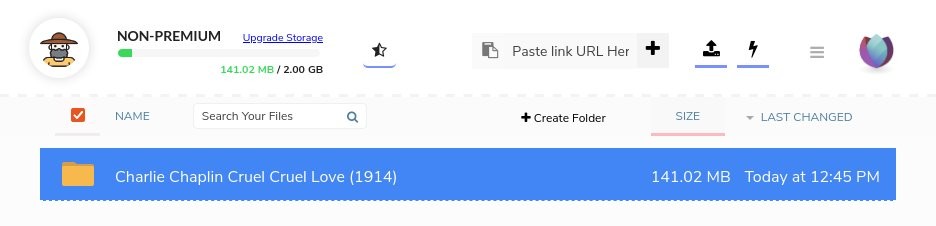
Click one file, then Shift-click another, to select a range. Or Ctrl-click (Cmd-click on Mac) to pick individual files. Right-click the selection for actions on all of them at once.
Common mistakes
- Pasting a webpage URL instead of the actual file link. Seedr needs the direct file link, not the search page that lists it. Right-click the download button and copy the link address.
- Closing the browser thinking you need to wait. You do not. Saves run server-side. Come back later.
- Trying to save a 40 GB file on a 2 GB free plan. Check your storage bar first. If the file is too big, free space or upgrade before adding the link.
Related reading
- Upgrade your Seedr account once the free tier feels tight.
- Organize files in Seedr — folders, search, bulk move.
- What to do while Seedr saves your files — the cloud-first workflow.
Wrap
Sign up, paste a link, click the file, enjoy. That is the whole loop. Everything else — subtitles, conversion, WebDAV mounts, Plex integration — is icing on top.


Was this article helpful?
Related Articles

How to open HEIC photos online on Windows, Android, or any browser
Open iPhone HEIC photos from any device in Seedr’s cloud viewer — no conversion, no codecs, no extra apps — and keep them organized alongside your other files.

Connect Seedr to Infuse (iOS, tvOS, macOS)
Learn how to easily connect your Seedr account to the Infuse app using WebDAV or FTP. View 4K media directly to your Apple TV or iOS device without saving.

Three ways to add links and files in Seedr V2
Learn how to use Seedr V2’s Link button to add media links, scan webpages, upload files from your device, and share to Seedr via PWA or browser extensions.