Connect Seedr to Jellyfin over FTP (step by step)
Connect Seedr to Jellyfin through an FTP-based copy by transferring media to a local folder and adding that folder to Jellyfin. This route uses local disk and bandwidth. Prefer a non-deleting copy for the first run, then test playback before automating transfers.
Unlike the WebDAV route, this gives you a cached copy on the server. Pros: playback never depends on your cloud connection. Cons: you use local disk and you have to re-sync when new files land.
What this gets you
- A Seedr-backed Jellyfin library that plays from local disk.
- Reliable playback even on flaky home internet.
- Full Jellyfin transcoding, scraping and client support.
- A pattern that works on NAS devices that don't love WebDAV mounts.
What you need
- A Seedr Pro or Master plan (FTP access is gated behind premium).
- Your Seedr email and password. Facebook-only logins: add an email first via Seedr support.
- The machine running Jellyfin. Windows, macOS, Linux, Docker, or a NAS (Synology, QNAP, Unraid).
- FileZilla Client installed on the Jellyfin host — or any FTP client. Cyberduck, WinSCP, Transmit all work.
- Local disk space for whatever you want to make watchable. Full libraries need terabytes; start with a single season.
Setup, step by step
Part 1 — Sync Seedr to a local folder with FileZilla
- Install FileZilla on the Jellyfin host.
- Open File → Site Manager → New Site, name it Seedr.
- Fill in:
- Protocol: FTP
- Host: ftp.seedr.cc
- Port: 21
- Encryption: Require explicit FTP over TLS
- Logon Type: Normal
- User / Password: your Seedr credentials
- Click Connect. Trust the certificate on first connect.
- Set the Local site (left pane) to the folder Jellyfin will read — e.g. D:\Media\Seedr\ or /srv/jellyfin/seedr/. Create it first if needed.
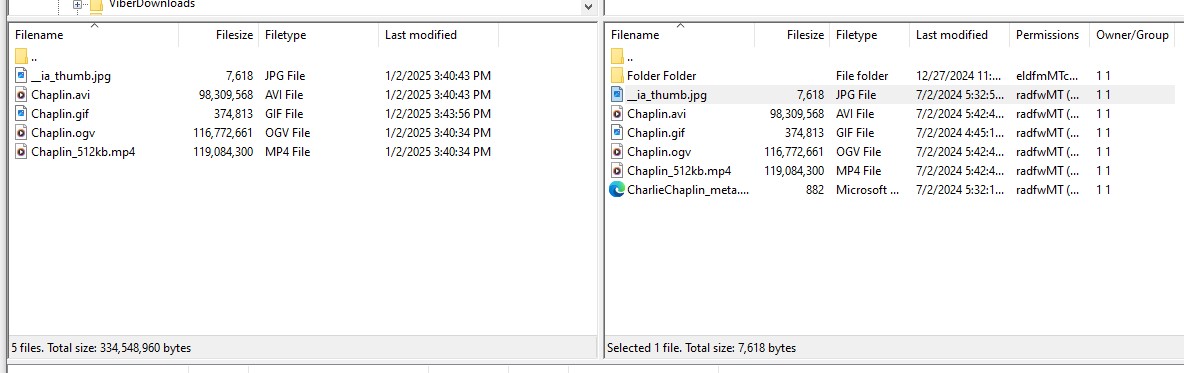
- In the remote pane (right), right-click the top-level folder you want → Download. FileZilla transfers recursively to your local site.
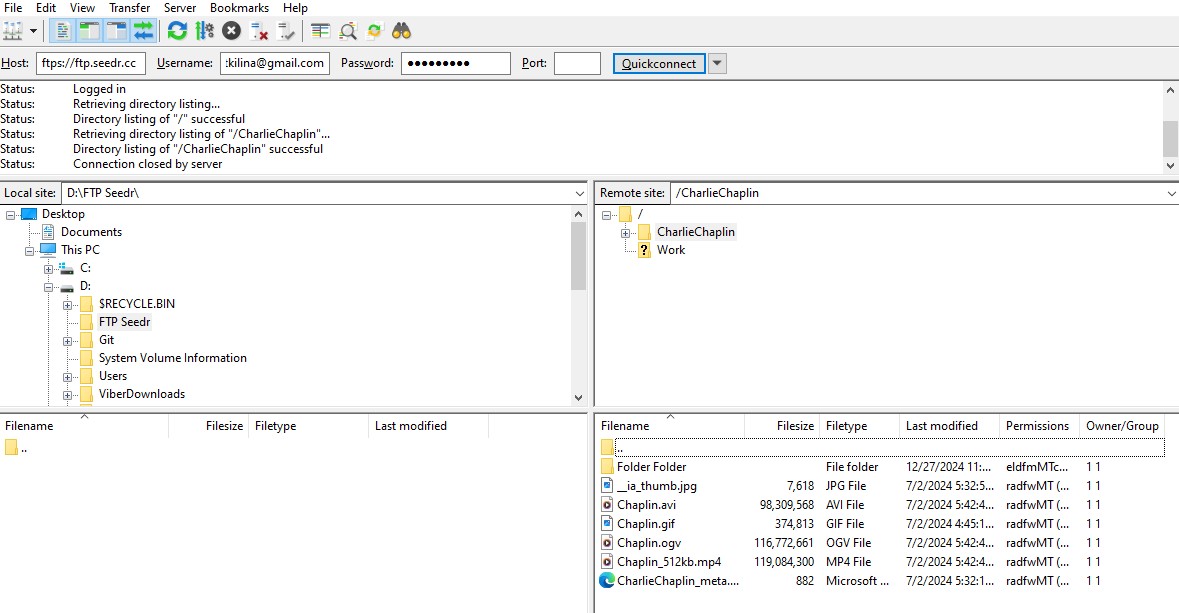
- When new content lands in Seedr, reconnect and re-download. FileZilla skips already-present files by default.
Advanced: use a scheduled rclone copy seedr-ftp: /srv/jellyfin/seedr/ cron job instead of manual syncing. More reliable, less clicking.
Part 2 — Add the folder to Jellyfin
- Open Jellyfin's web interface (http://localhost:8096 or your server IP).
- Sign in as the admin user.
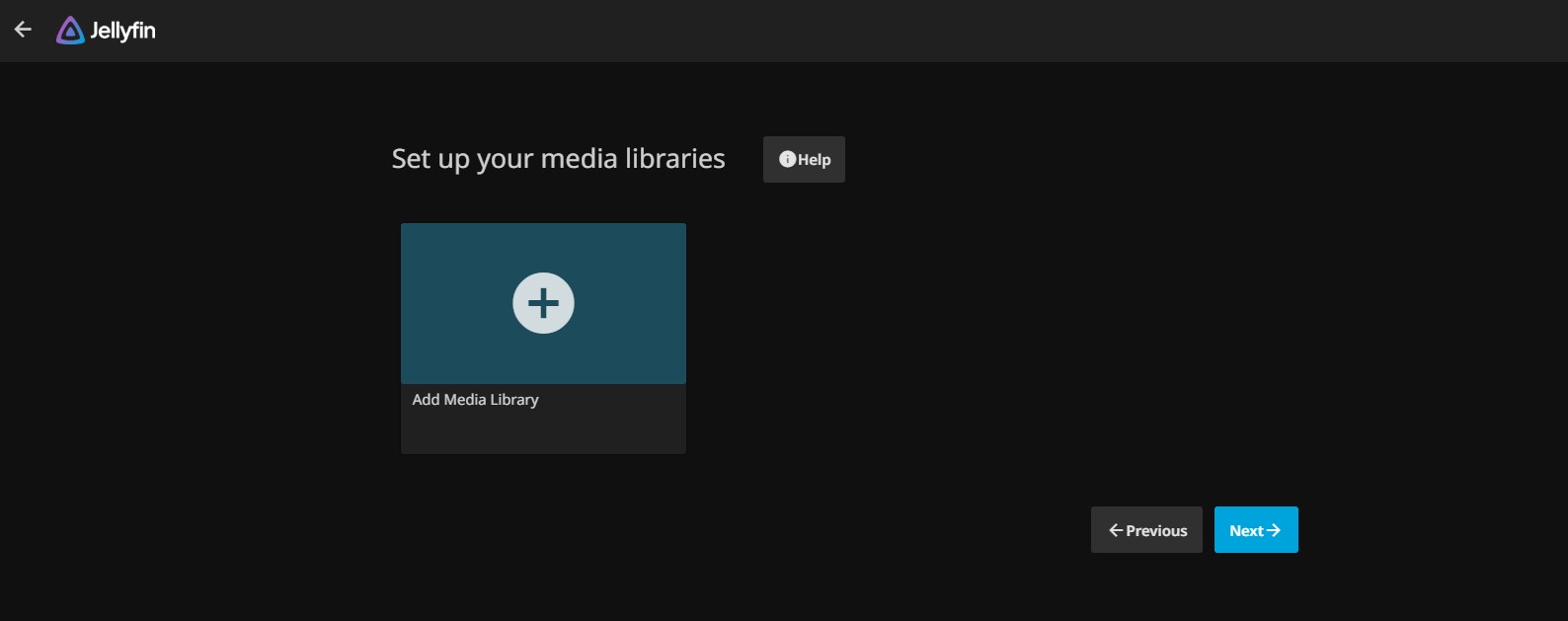
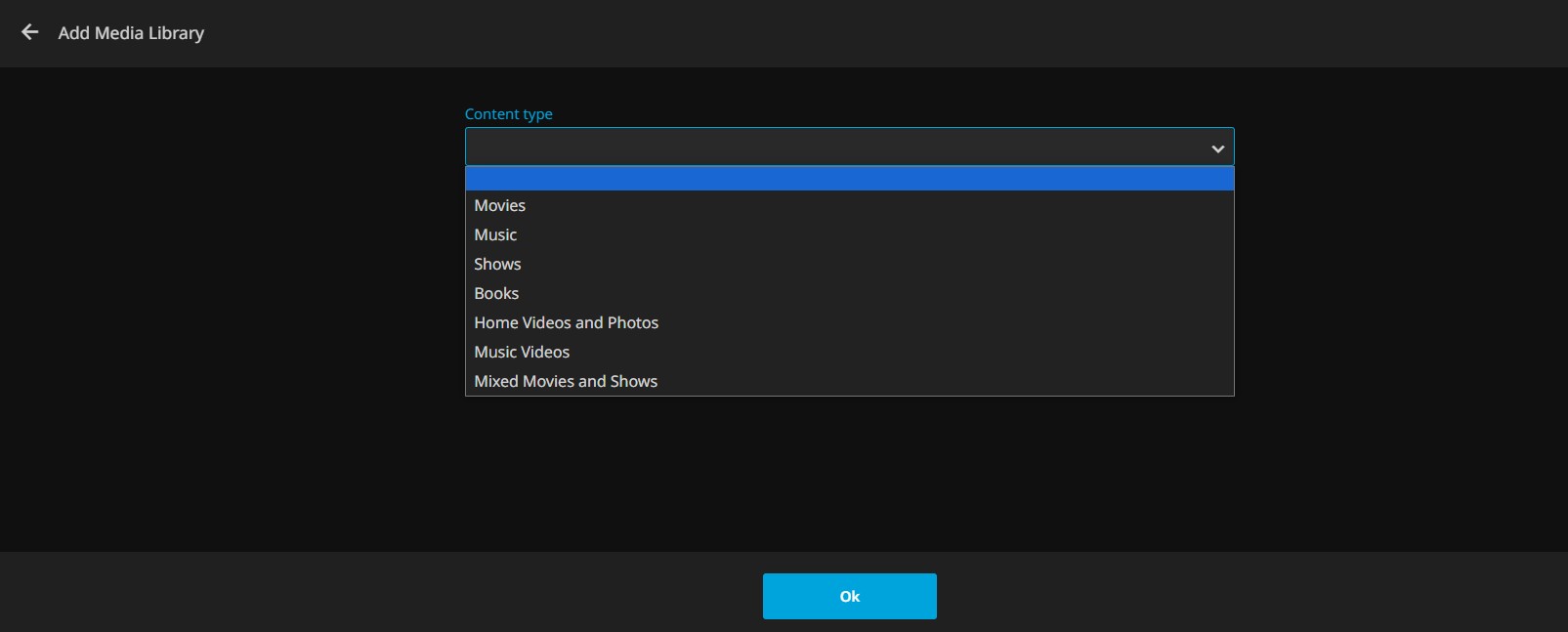
- Go to Dashboard → Libraries → Add Media Library.
- Pick the content type (Movies, Shows, Music, etc.).
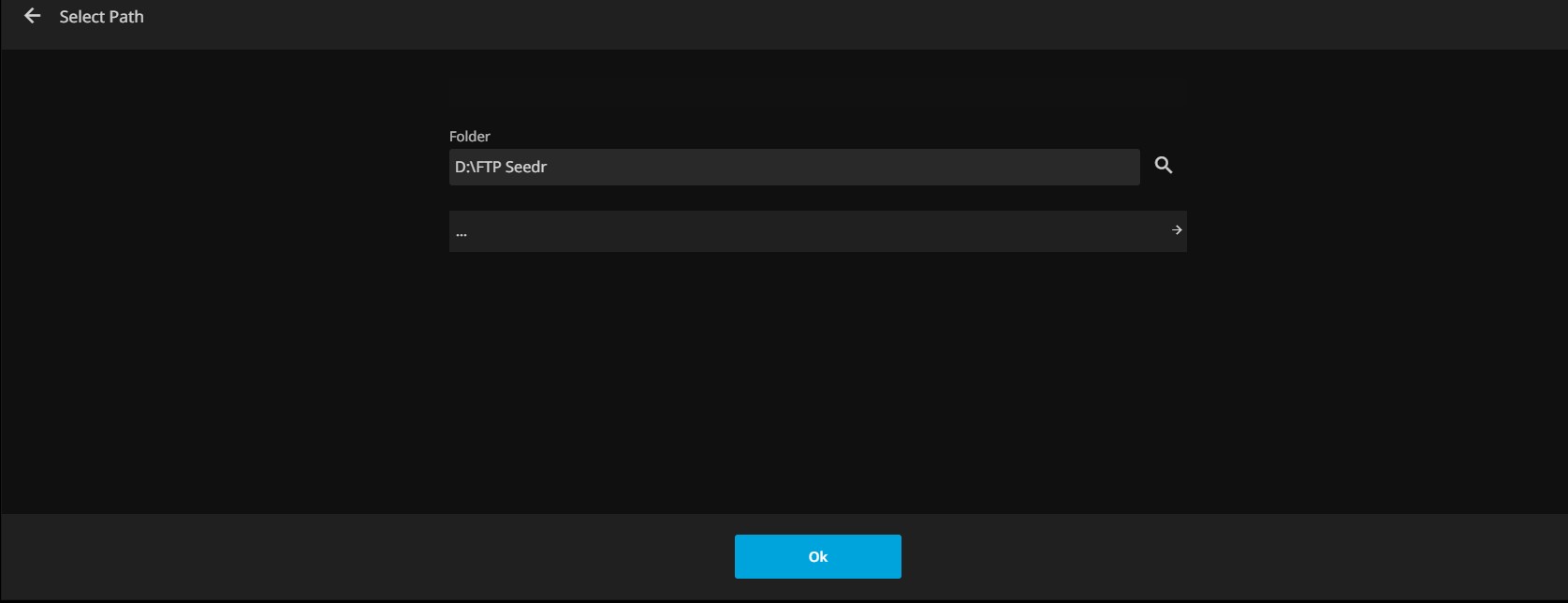
- Click + next to Folders and browse to the local folder you synced into (D:\Media\Seedr\ or /srv/jellyfin/seedr/).
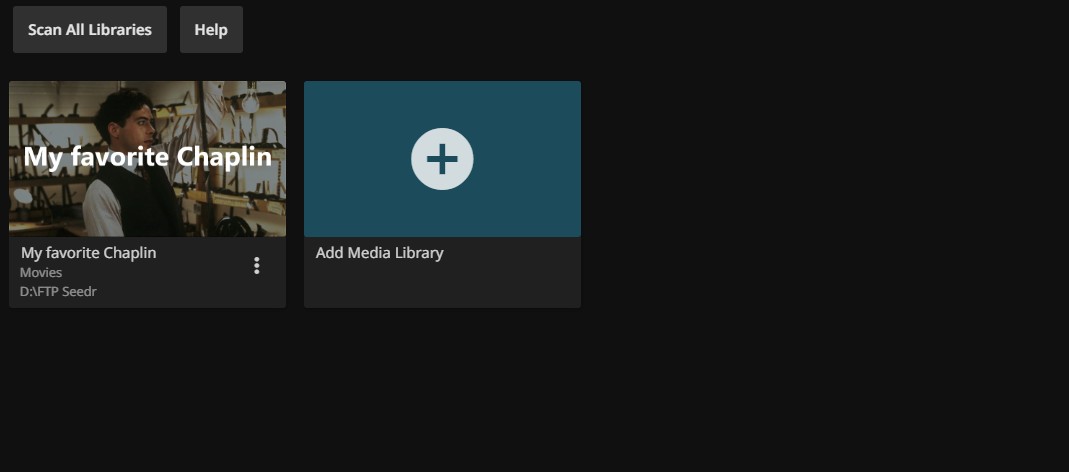
- Name the library. Leave scrapers at default unless you have strong opinions.
- Click Ok → Save.
Jellyfin scans and pulls posters. First scan is a few minutes per hundred items.
Troubleshooting
- Jellyfin logs "Access to the path is denied". The Jellyfin service account cannot read the sync folder. On Windows, run Jellyfin as your user, or grant Users read access on the folder. On Linux, chown -R jellyfin:jellyfin /srv/jellyfin/seedr/.
- FileZilla fails with "Failed to retrieve directory listing". Passive-mode issue. In FileZilla Settings → Connection → FTP → Transfer Mode set Passive. Some home routers need port-range forwarding disabled entirely; tethering via your phone confirms.
- "530 Login authentication failed". Wrong email, wrong password, or your Seedr plan is not Pro/Master. Double-check in the Seedr dashboard.
- Transfer stops partway, no error. TLS session issue. Uncheck Require TLS session resumption on data connection under FTP TLS settings, reconnect, retry.
- Jellyfin shows the files but won't play some. Local playback, so codec is the culprit, not transfer. Use Jellyfin's transcoding settings, or right-click the file in Seedr before downloading and use Convert → MP4 to produce a universally playable copy.
- Library doesn't notice new files after sync. Jellyfin caches. Trigger Scan library files manually in the library's menu, or enable real-time file watcher in Jellyfin settings.
What works well and what does not
Works well:
- Rock-solid playback: everything is on local disk once synced.
- Full Jellyfin feature set — transcoding, hardware accel, multi-user profiles, external subs.
- Works on NAS hardware that struggles with WebDAV long-lived connections.
- Good pattern for selective archiving: pick the stuff you actually rewatch.
Known limits:
- Local disk use. Unlike WebDAV, this uses storage on your server. A 50-movie library needs 250+ GB.
- Not live. New files in Seedr don't appear in Jellyfin until you re-sync. Cron/rclone helps.
- FTP port 21 is blocked on some ISPs and public networks. Tether or VPN to confirm before blaming Seedr.
- Seek in very large MKV files during the sync is slower than WebDAV; once synced, local disk is fine.
Wrap
Choose copy or mount deliberately
Use the endpoint and credentials shown in your own Seedr account; do not copy an example password.
Confirm your plan includes the protocol. FTP, SFTP and WebDAV are different connections.
A mount still transfers data and may cache locally. Test a small file, permissions and reconnection before adding a library.
Frequently asked questions
Does a network mount remove the need for internet?
No. Reading uncached cloud data requires a connection. Some clients also keep local cache files.
Does Seedr run my media server?
No. Plex and Jellyfin still need their own running server. Seedr can supply files to a compatible mounted or copied library.
Sources and compatibility notes
rclone copy documentation: Copying preserves destination-only files.
Jellyfin installation documentation: Install a server on a supported host.
Current Seedr help and plan information lists plan-dependent storage and access. Check your account before choosing a paid feature.
Related guides
هل كانت هذه المقالة مفيدة؟
مقالات ذات صلة

ربط Seedr بـ Plex عبر FTP (دليل خطة Pro)
أعدّوا Seedr مع Plex عبر اتصال FTP. اطّلعوا على ملفاتكم السحابية في Plex لمشاهدة الوسائط بسلاسة.

Run Plex Without a NAS: Use Seedr as Your Library
Run Plex without a NAS by keeping media in cloud storage and mounting it on the computer running Plex Media Server. Seedr supplies the files; Plex still.

How to stream MKV and AVI videos in your browser
Stream MKV and AVI in a browser by using a compatible playback service rather than assuming the file extension is supported locally. In Seedr, import the.