Smart Search in Seedr: What Works Today and What's Next
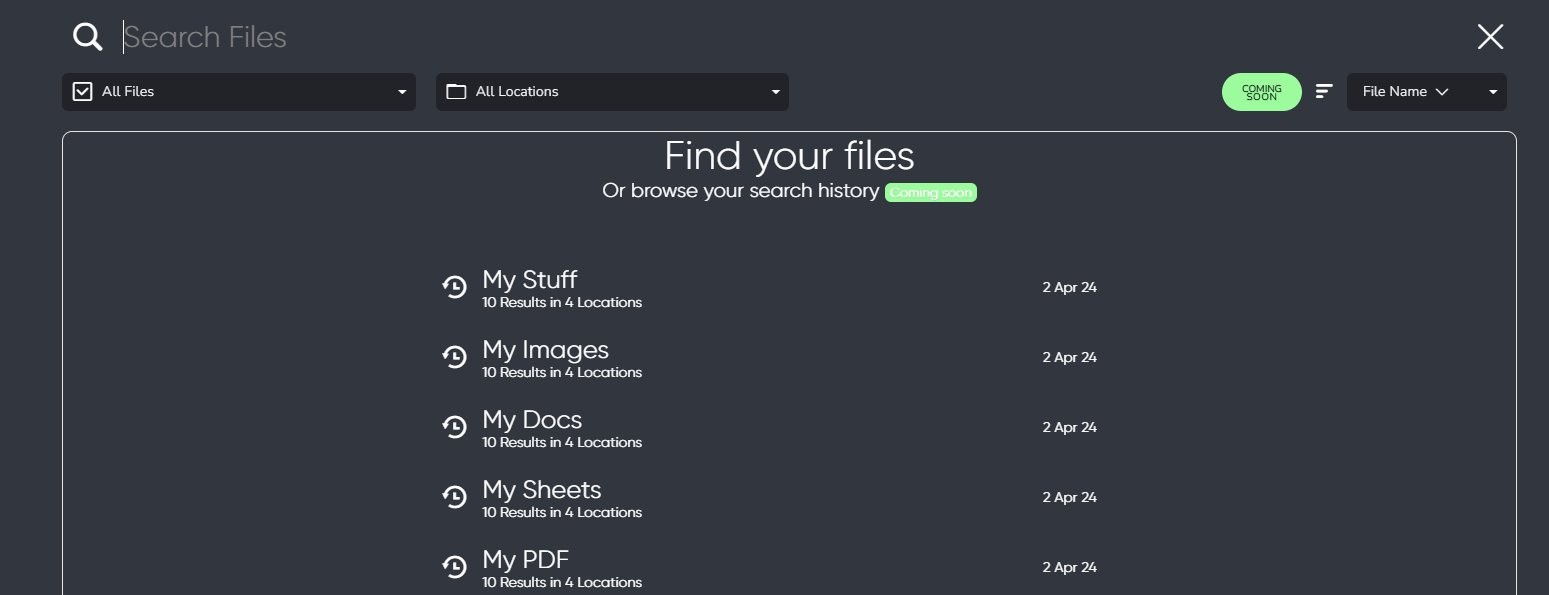
Find files more easily by using descriptive names and the search controls in your current Seedr account. Connected Google Drive browsing is documented, but it does not prove full-text search across every service. Treat older search roadmap claims as unverified until checked.
Search starts with names and scope
Use descriptive file names and a consistent folder structure. Check the active account and folder when a result is missing. Current product notes document Google Drive browsing and previews; they do not establish full-text search across every file type or connected service.
Do not confuse separate features
Filename search matches labels.
Content search needs an index of text inside supported documents.
Cross-service search also depends on provider permissions and supported integrations.
Keep the workflow practical
Rename important files with a project, date and topic. Group related files and keep source copies. Historical roadmap promises do not show whether a particular search field is available in your account today.
Make files easier to find
Give files descriptive names with a project, date or topic you will remember.
Keep a consistent folder structure and check which connected account is being searched.
Search results depend on your permissions and the supported fields. Do not assume filename search also indexes document text.
Frequently asked questions
Does filename search prove that document text is indexed?
No. Searching names and searching inside documents are different capabilities.
Can search bypass Google Drive permissions?
No. A connected account still has the access granted by Google and the file owner.
Sources and compatibility notes
Google Drive download help: A file owner can restrict downloads.
Google account access guide: Review third-party account permissions.
Current Seedr help and plan information lists plan-dependent storage and access. Check your account before choosing a paid feature.
Related guides
Was this article helpful?
Related Articles
Is Seedr right for you? What it does and its limits
Who Seedr fits and where its limits are: link support, storage, playback quality, TV and protocol access, connected storage and seeding time.
Seedr glossary: cloud downloading terms explained
Plain definitions of cloud downloading terms, from remote downloads and magnet links to WebDAV, FTP, TV playback and seeding limits, with links to Seedr Help.

Edit a PDF online without Acrobat — what actually works
Edit or fill in PDFs directly in your browser with Seedr. Fix typos, update details, and complete forms without printing, scanning, installing Acrobat, or juggling separate tools.