How to play MKV files online without VLC or converting them
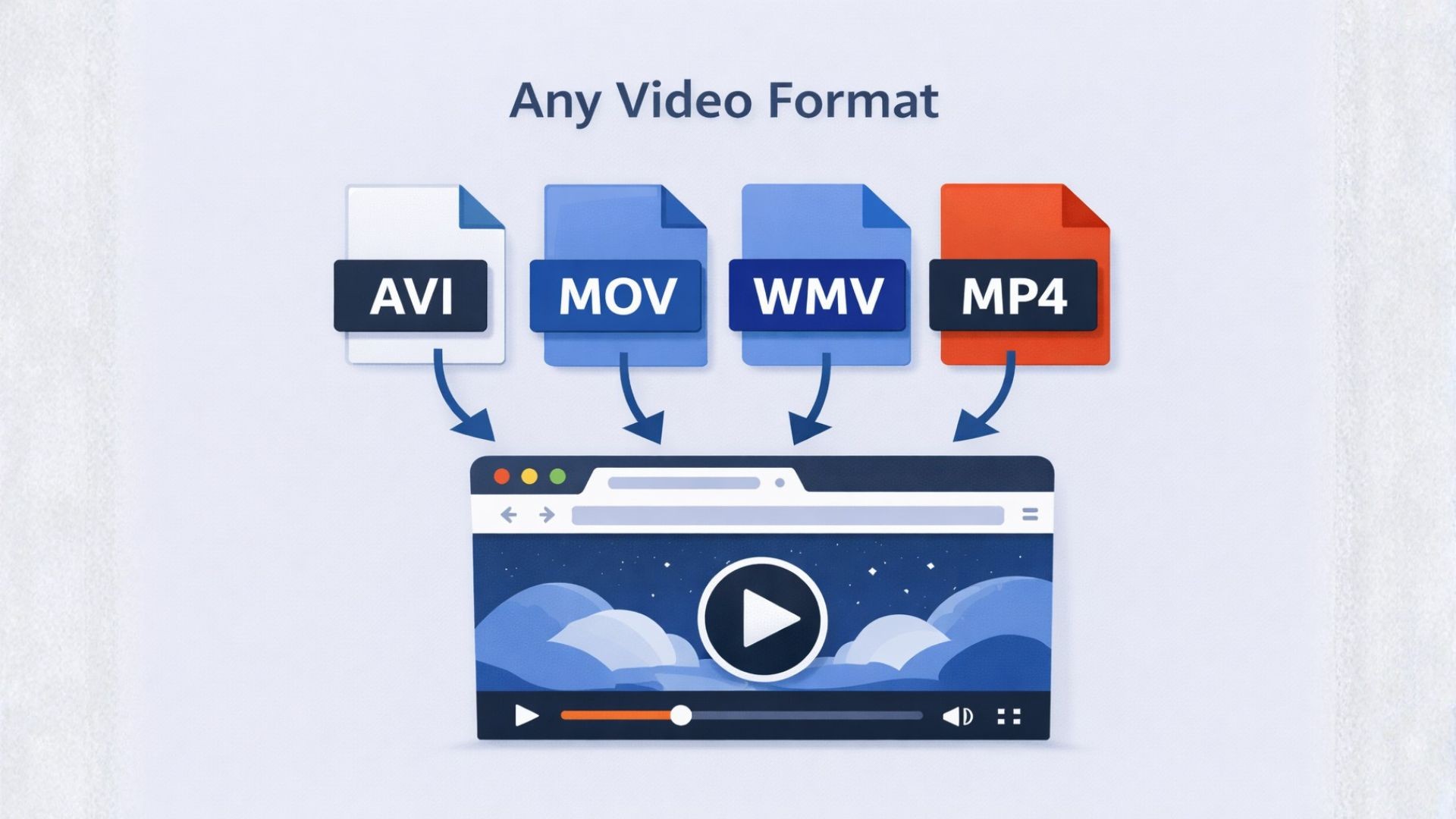
Watch an MKV online by importing it into Seedr and opening the finished cloud file. You may avoid installing VLC or exporting a separate MP4, but compatible streaming can still involve server-side conversion and plan-based quality limits.
What is an MKV file
MKV is a container format — it holds video, audio, subtitles, and chapter information together in one file. It is widely used for high quality video because it supports multiple audio tracks, multiple subtitle tracks, and virtually any codec. Seedr plays MKV directly in the cloud — the file does not need to be on your device, it does not need to be converted, and nothing needs to be installed.
How to play an MKV file in Seedr
Upload your MKV to Seedr, or paste a link if the file is stored somewhere online. Once it appears in your cloud:
- Click the file to open it in the cloud player
- The video starts playing in your browser instantly
- Switch between audio tracks if the file has more than one — available in Seedr V2
- Enable subtitles via SRT file or OpenSubtitles search
- Cast to your TV via Chromecast, AirPlay, Roku, or Google TV if you want a bigger screen
The file stays in your cloud and is accessible from any device without re-fetching or transferring anything.
MKV on your TV
The most common situation is an MKV that plays fine on a laptop but does not play on a smart TV. Most smart TVs have limited codec support and will either refuse the file entirely or play it without audio. Seedr plays the file from the cloud to your TV via Chromecast, AirPlay, Roku, or Google TV — the TV receives a clean view, not a raw file it has to decode itself. Make sure your phone or laptop is on the same WiFi network as your casting device, tap the cast button in the player, and select your TV.
Subtitles and multiple audio tracks
MKV files often contain more than just video — a film with the original audio track and a dubbed version, subtitles in multiple languages, chapter markers for easy navigation. Seedr's player surfaces all of this. Switch between audio tracks directly in Seedr V2's player. For subtitles, keep an SRT file in the same Seedr folder as the video and it will be available automatically, or use Seedr's OpenSubtitles integration to find and load subtitles directly without a separate save.
One place for your media
Seedr plays the original file, in the cloud, from any device, with no conversion and nothing to install. The file is there once and plays everywhere — on your phone, your laptop, or your TV. For larger media libraries, Seedr's Premium plans give you significantly more cloud space so you can keep more content ready to watch without managing storage limits.
Check the file before changing it
An MKV is a container, not a video codec. Check whether the picture, sound or subtitles are failing.
Finish importing the file before testing playback. Try a short section, seek forward, then check the desired audio and subtitle tracks.
Keep the original. A browser stream does not prove an exported MP4 will retain every track.
Frequently asked questions
Does renaming MKV to MP4 fix playback?
No. Renaming changes the filename, not the container or codecs. Use a compatible player or a real conversion.
Do I need to save the entire video locally?
Not for online playback in Seedr. Streaming still uses your internet connection and a temporary device buffer.
Sources and compatibility notes
MDN media containers: Containers and codecs are separate compatibility checks.
Matroska specification: MKV can contain audio and subtitle tracks.
Current Seedr help and plan information lists plan-dependent storage and access. Check your account before choosing a paid feature.
Related guides
Was this article helpful?
Related Articles

What's new for cloud storage, apps and your account in Seedr, October 2026
External storage from the + menu, Google Drive folders, cloud transfers that resume and retry, cloud conversions, your signed-in devices and new languages.
What's new for your files in Seedr, October 2026
The Tools tab, tags and metadata, Save to folder when adding a link, safer folder moves, an easier phone experience and a much faster files page.
What's new in Seedr downloads, October 2026
HTTP/3 downloads tuned for speed, downloads that no longer get stuck, clearer tracker messages, more supported link sites and smaller fixes.