Como reproduzir arquivos MKV online sem VLC ou convertê-los
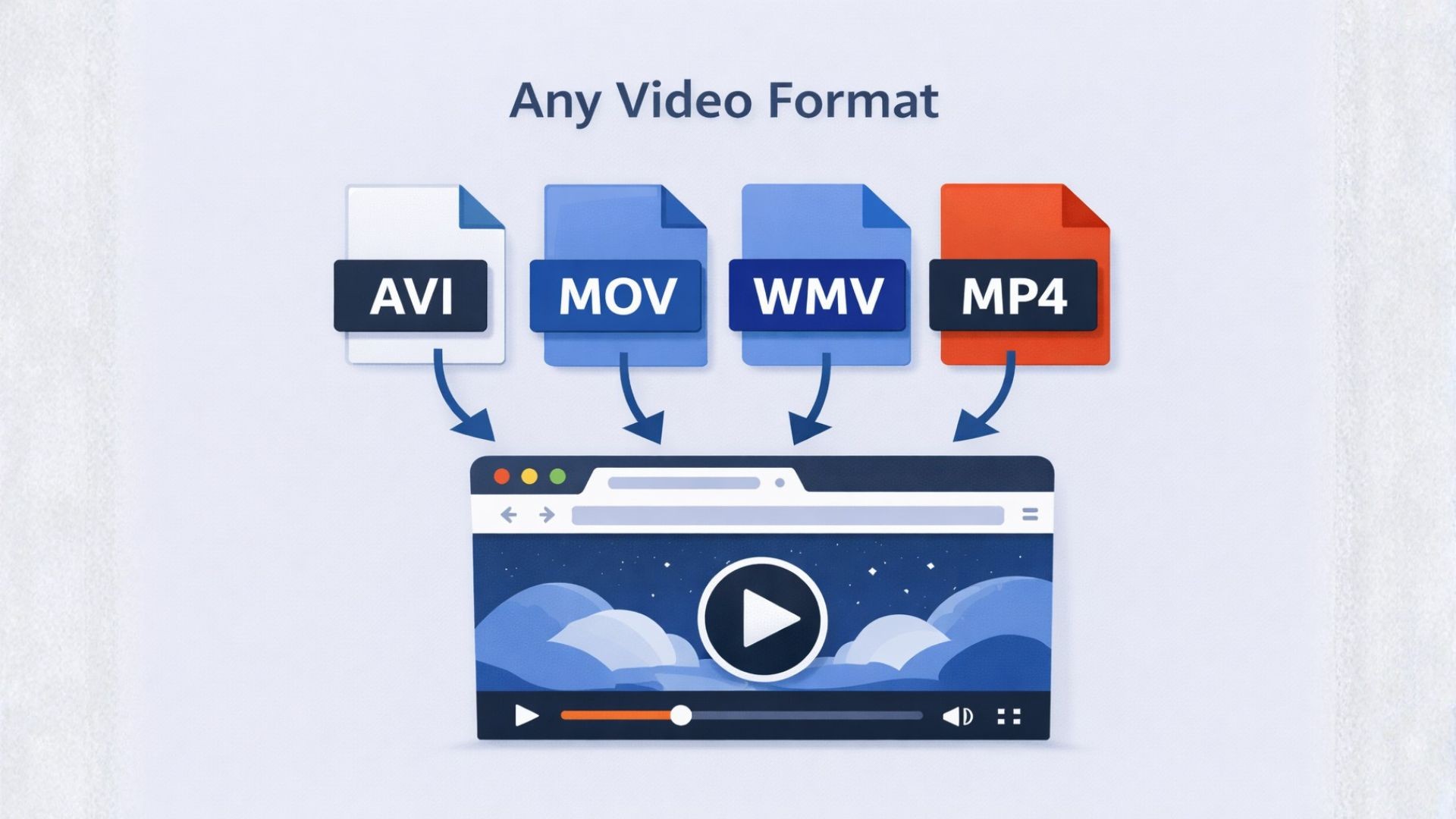
Paste a link or upload an MKV file to Seedr, and it plays. No VLC, no codec pack, no conversion to MP4 first. The video streams directly in your browser, on any device, in the original quality.
What is an MKV file
MKV is a container format — it holds video, audio, subtitles, and chapter information together in one file. It is widely used for high quality video because it supports multiple audio tracks, multiple subtitle tracks, and virtually any codec. Seedr plays MKV directly in the cloud — the file does not need to be on your device, it does not need to be converted, and nothing needs to be installed.
How to play an MKV file in Seedr
Upload your MKV to Seedr, or paste a link if the file is stored somewhere online. Once it appears in your cloud:
- Click the file to open it in the cloud player
- The video starts playing in your browser instantly
- Switch between audio tracks if the file has more than one — available in Seedr V2
- Enable subtitles via SRT file or OpenSubtitles search
- Cast to your TV via Chromecast, AirPlay, Roku, or Google TV if you want a bigger screen
The file stays in your cloud and is accessible from any device without re-fetching or transferring anything.
MKV on your TV
The most common situation is an MKV that plays fine on a laptop but does not play on a smart TV. Most smart TVs have limited codec support and will either refuse the file entirely or play it without audio. Seedr streams the file from the cloud to your TV via Chromecast, AirPlay, Roku, or Google TV — the TV receives a clean stream, not a raw file it has to decode itself. Make sure your phone or laptop is on the same WiFi network as your casting device, tap the cast button in the player, and select your TV.
Subtitles and multiple audio tracks
MKV files often contain more than just video — a film with the original audio track and a dubbed version, subtitles in multiple languages, chapter markers for easy navigation. Seedr's player surfaces all of this. Switch between audio tracks directly in Seedr V2's player. For subtitles, keep an SRT file in the same Seedr folder as the video and it will be available automatically, or use Seedr's OpenSubtitles integration to find and load subtitles directly without a separate download.
One place for your media
Seedr plays the original file, in the cloud, from any device, with no conversion and nothing to install. The file is there once and plays everywhere — on your phone, your laptop, or your TV. For larger media libraries, Seedr's Premium plans give you significantly more cloud space so you can keep more content ready to watch without managing storage limits.
Este artigo foi útil?
Artigos Relacionados
Novidades sobre armazenamento na nuvem, aplicações e a sua conta no Seedr, outubro de 2026
Armazenamento externo a partir do menu +, pastas do Google Drive, transferências da nuvem que são retomadas e repetidas, conversões na nuvem, os seus dispositivos com sessão iniciada e novos idiomas.
Novidades para seus arquivos no Seedr, outubro de 2026
A aba Ferramentas, etiquetas e metadados, opção de salvar em uma pasta ao adicionar um link, movimentação de pastas mais segura, uma experiência mais fácil no celular e uma página de arquivos muito mais rápida.
Novidades nas transferências do Seedr, outubro de 2026
Transferências por HTTP/3 otimizadas para maior velocidade, transferências que já não ficam bloqueadas, mensagens mais claras dos rastreadores, mais sites de ligações compatíveis e correções menores.