Which protocol should your NAS use with Seedr?

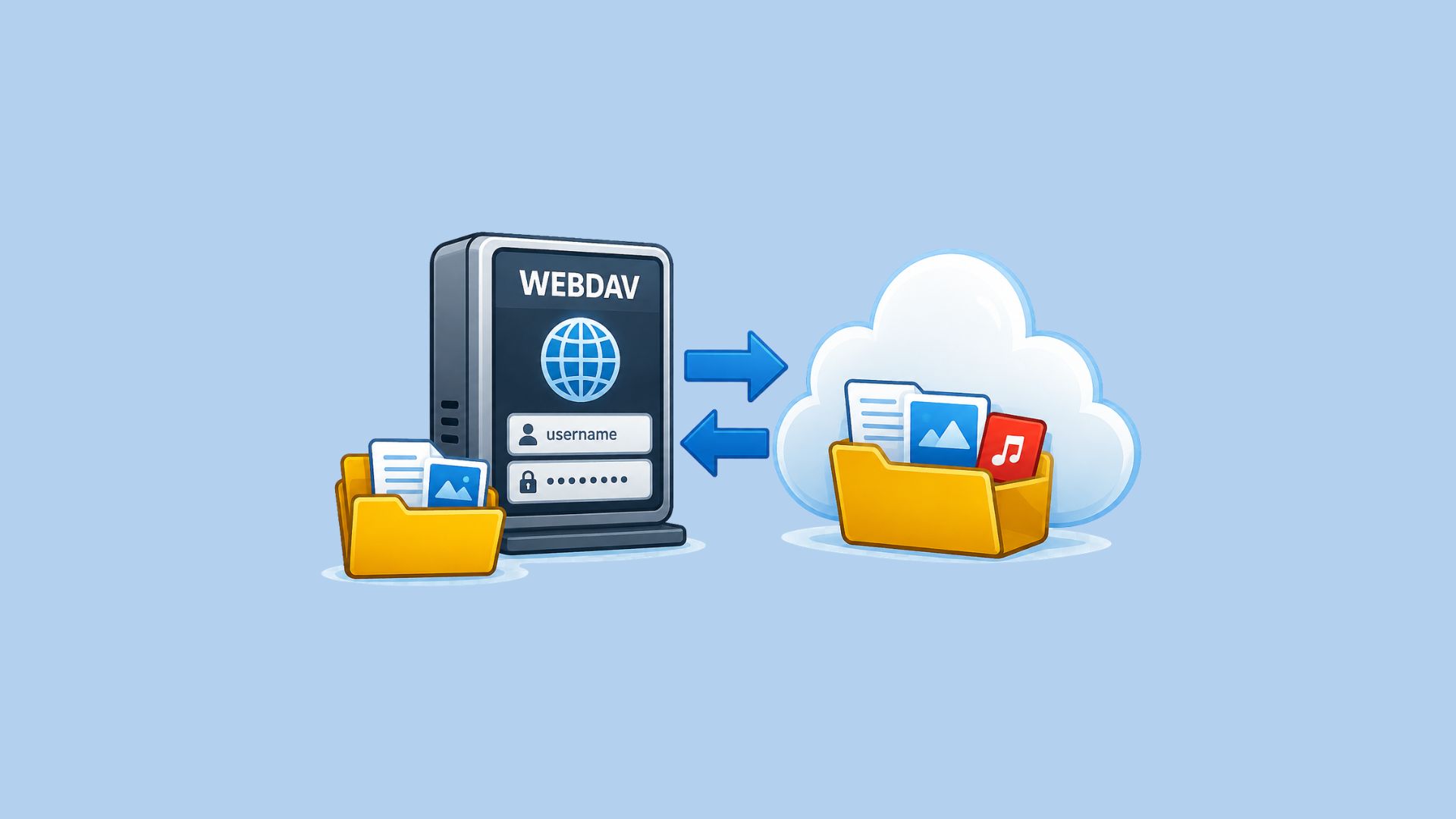
On Basic/Pro, choose SFTP for rclone or scripts with host-key validation, or explicit FTPS for compatible FTP-style clients. On Master and up, WebDAV over HTTPS also suits NAS sync and backup apps. Avoid plain FTP because it exposes passwords and file contents.
Before you start
FTP, FTPS and SFTP are included on Basic and up (Basic, Pro, Master, Gold). Free and Lite do not include them. WebDAV needs Master and up (Master, Master X2/X3/X5, Gold); Basic and Pro do not include it. Upgrade to Basic for FTP, FTPS or SFTP, or Upgrade to Master for WebDAV. Adding your NAS as connected storage in Settings → External services (FTP/SFTP/WebDAV) is a separate feature requiring Pro and up.
Open Settings and check the “Connect to Seedr from your own apps” card for the protocols included in your plan.
Setup guides: Connect your NAS to Seedr and Mount Seedr on your NAS.
Choose the direction first
NAS → Seedr: the NAS app connects to Seedr’s file endpoint. Create an app password in Seedr Settings and use it with your Seedr username. Allow outbound connectivity; do not forward inbound router ports for this direction.
Seedr → NAS: adding your NAS as connected storage in Settings → External services (FTP/SFTP/WebDAV) needs Pro and up. Seedr connects to your NAS service. Use a dedicated NAS user restricted to one folder and a reachable public hostname. SFTP key login depends on your NAS service and the client. The Master requirement applies to Seedr’s own WebDAV endpoint, not your NAS WebDAV service.
Protocol comparison
Protocol | Protection / best fit | Seedr endpoint plan |
|---|---|---|
WebDAV | HTTPS / TLS; sync and backup apps | Master and up |
SFTP | SSH; rclone and scripts | Basic and up |
FTPS | TLS; FTP-style clients | Basic and up |
FTP | None; avoid online | Basic and up |
NAS → Seedr settings
Protocol | Port | Login |
|---|---|---|
WebDAV | 443 | App password |
SFTP | 2222 | App password |
Explicit FTPS | 21 | App password |
FTP | 21 | App password |
WebDAV uses https://dav.seedr.cc/ with Basic authentication over HTTPS. SFTP uses sftp.seedr.cc on port 2222; verify Seedr’s published ED25519 host-key fingerprint. FTP uses ftp.seedr.cc on port 21; choose explicit TLS (AUTH TLS) and passive mode for FTPS.
Use app passwords for these Seedr endpoints. For rclone SFTP, configure known_hosts_file with a key checked against Seedr’s trusted published fingerprint. rclone does not validate host keys by default.
Seedr → NAS network setup
Service | Reachable ports | Credentials |
|---|---|---|
HTTPS WebDAV | One HTTPS port | NAS user/password |
SFTP | One SSH port | NAS user login |
Explicit FTPS | Control + passive range | NAS user/password |
Enter the external port you forwarded, which can differ from the NAS-side port. FTPS also needs the passive data range forwarded and the correct public IP in passive replies. These forwarding requirements apply when Seedr reaches your NAS.
QNAP QTS 5.2 built-in SSH/SFTP allows only administrators, so choose restricted-user FTPS or WebDAV. TrueNAS SCALE 24.x has no built-in WebDAV service; use FTPS for inbound access. Its Cloud Sync client remains useful for outbound WebDAV. Synology DSM 7 offers WebDAV Server for inbound access and Cloud Sync or Hyper Backup for outbound jobs.
Speed and interrupted transfers
Your connection, NAS CPU, file sizes and client settings decide throughput. Try one small folder, then compare completed files and errors before increasing parallel transfers. No protocol is always fastest.
Resume support depends on the client and server. FTP-style and SFTP clients can support resuming; WebDAV download resume depends on HTTP Range support, and uploads may restart. A retry is not proof that an upload resumed.
Quick checks
Use HTTPS for WebDAV and explicit TLS for FTPS; keep certificate validation enabled.
For SFTP, compare the host key with a trusted fingerprint before accepting it. Confirm unexpected key changes through the service operator.
Keep one Seedr app password per NAS job or device. For inbound connections, keep the NAS login limited to the intended folder.
FTPS and SFTP are different: FTPS uses TLS plus FTP data connections; SFTP uses SSH on one port. Choose the protocol your actual app supports, then follow the guide for your direction.
Was this article helpful?
Related Articles
Mount Seedr on your NAS (WebDAV, SFTP, FTPS)
Sync, back up or mount Seedr on Synology, QNAP, TrueNAS SCALE or Unraid over WebDAV, SFTP or FTPS. Endpoints, app password and step-by-step setup.
Connect your NAS to Seedr over FTP, FTPS, SFTP or WebDAV
Connect a Synology, QNAP, TrueNAS or Unraid NAS to Seedr. Choose a file service, limit folder access, configure ports and verify server identity.

How to open HEIC photos online on Windows, Android, or any browser
Open iPhone HEIC photos from any device in Seedr’s cloud viewer — no conversion, no codecs, no extra apps — and keep them organized alongside your other files.