Mount Seedr on your NAS (WebDAV, SFTP, FTPS)
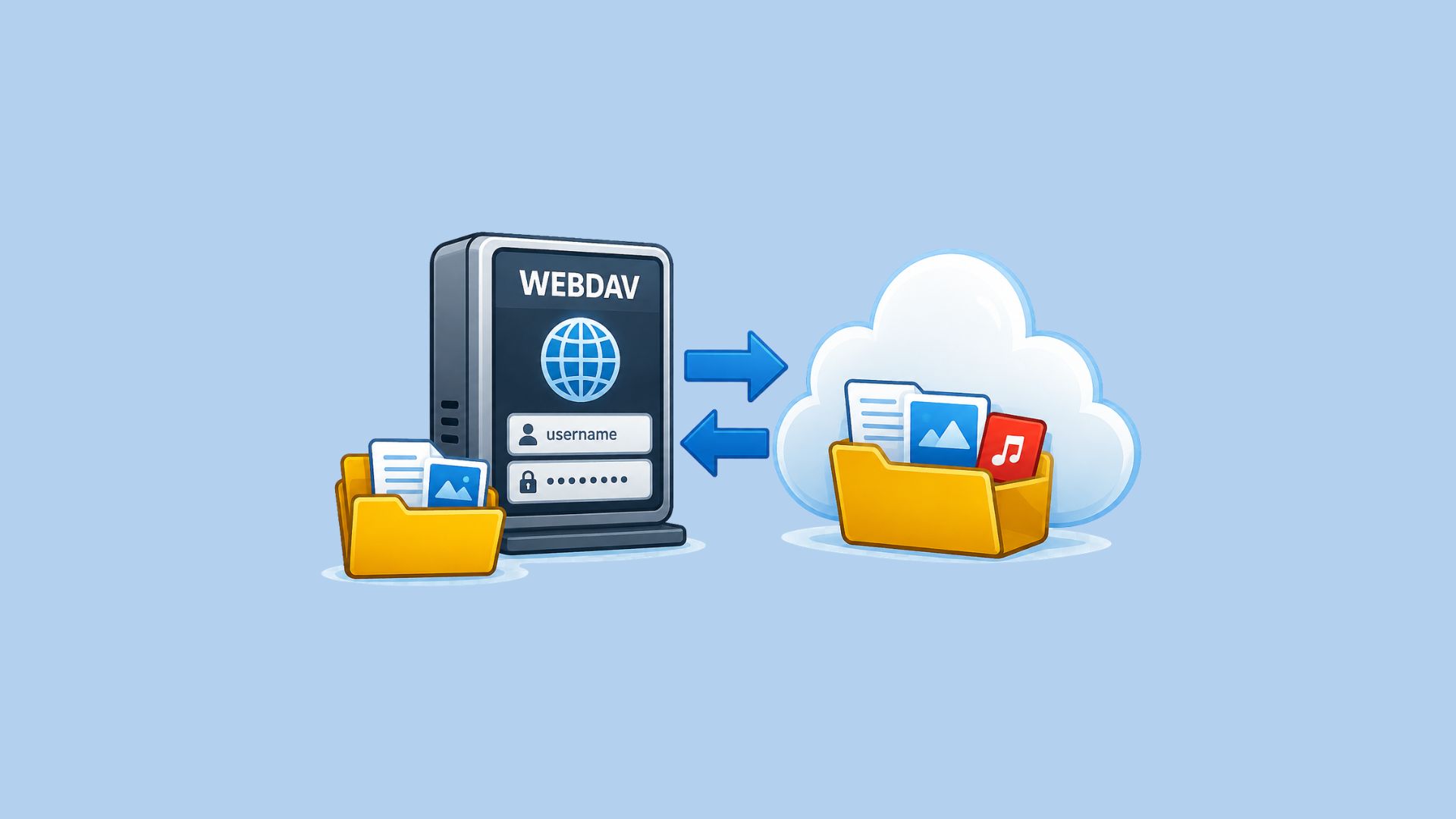
Your NAS connects to Seedr to copy files, back up a folder or access cloud files on demand. Start with SFTP or explicit FTPS on Basic/Pro. WebDAV over HTTPS is available on Master and up.
Before you start
FTP, FTPS and SFTP are included on Basic and up (Basic, Pro, Master, Gold). Free and Lite do not include them. WebDAV needs Master and up (Master, Master X2/X3/X5, Gold); Basic and Pro do not include it. Upgrade to Basic for FTP, FTPS or SFTP, or Upgrade to Master for WebDAV. Adding your NAS as connected storage in Settings → External services (FTP/SFTP/WebDAV) is a separate feature requiring Pro and up.
Open Settings and create an app password. Use the username shown there and that app password in your NAS app. The “Connect to Seedr from your own apps” card shows which protocols your plan includes.
Choose one folder for your first transfer. This direction needs outbound internet access from the NAS; you do not need to forward router ports.
NAS | Start here |
|---|---|
Synology | Basic/Pro: rclone SFTP/FTPS; Master and up: Cloud Sync/Hyper Backup WebDAV |
QNAP | Basic/Pro: HybridMount/HBS 3 FTPS; Master and up: WebDAV |
TrueNAS SCALE | Basic/Pro: Cloud Sync SFTP; Master and up: Cloud Sync WebDAV |
Unraid | Basic/Pro: rclone SFTP/FTPS; Master and up: rclone WebDAV |
For Seedr to browse your NAS instead, read Connect your NAS to Seedr. For the trade-offs, read Which protocol should your NAS use with Seedr?.
Quick setup by NAS
Synology DSM 7
Basic/Pro: use rclone in Container Manager on a supported NAS over SFTP or explicit FTPS. Mount persistent config at /config/rclone and your destination at /data; follow the validated-host setup below. File Station also supports SFTP for manual access via Tools → Remote Connection → Connection Setup, using sftp.seedr.cc, port 2222 and your app password. Verify the host key before accepting it; use rclone if your client cannot validate it.
Master and up: Cloud Sync and Hyper Backup use WebDAV for this setup; neither lists FTP/SFTP destinations.
Install Cloud Sync from Package Center; add a WebDAV connection with https://dav.seedr.cc, your Seedr username and app password.
Choose remote and local folders. Select Download remote changes only or Upload local changes only.
Enable keeping destination files when source files are removed. Apply and check the first transfer log.
For versioned backups, use Hyper Backup → + → Data backup task → WebDAV with the same credentials and a dedicated folder. Set schedule and rotation; restore archives with Hyper Backup.
QNAP: HybridMount
Basic/Pro: open HybridMount → Create Remote Mount → Network Drive Mount; select FTP.
Enter ftp.seedr.cc, port 21, your Seedr username and app password. Enable secure FTPS with explicit TLS and passive mode. Keep certificate checks enabled.
Choose the remote folder and connection name, create the mount and open File Station. If your build lacks explicit TLS, use rclone SFTP/FTPS below.
Master and up: in HybridMount 1.11 or later, choose Create Remote Mount → Cloud Drive Mount → Create → WebDAV Cloud/Server. Enter https://dav.seedr.cc and your Seedr credentials. Create; check Mounted under Mount Management → Cloud Services.
Cloud Drive Mount has no local cache. File Cloud Gateway is a separate cached mode and needs at least 20 GB of cache space per mount.
QNAP: HBS 3 scheduled copies
Basic/Pro: open HBS 3 → Storage Spaces → Create → FTP server. Enter ftp.seedr.cc, port 21, your Seedr username and app password. Enable FTP with SSL/TLS (Explicit) and passive mode. Test, then create.
Create a one-way sync job from a NAS folder to that storage space. Set a schedule, run once and check the log.
Master and up: instead create a WebDAV storage space with Server URL https://dav.seedr.cc and the same credentials. Enable Validate SSL certificate, then create the sync job.
TrueNAS SCALE 24.x: Cloud Sync
Basic/Pro: under Credentials → Backup Credentials → Cloud Credentials, add SFTP with sftp.seedr.cc, port 2222, your Seedr username and app password. Cloud Sync also supports FTP; do not use unencrypted FTP online.
Verify host-key validation against Seedr’s trusted fingerprint. If your version cannot enforce it, use rclone with known_hosts_file below.
Open Data Protection → Cloud Sync Tasks → Add. Choose credentials, remote folder and local dataset.
Choose PULL for Seedr → NAS or PUSH for NAS → Seedr. Start with COPY; SYNC can delete destination files. Save, Dry Run, then Run Now. Check logs before scheduling.
Master and up: use WebDAV cloud credentials instead: URL https://dav.seedr.cc, vendor Other, Seedr username and app password. Cloud Sync is an outbound client; SCALE 24.x has no built-in WebDAV server.
Unraid: rclone
Basic/Pro: install rclone using your chosen plugin or container; create seedr-sftp or seedr-ftps below. Keep config persistent. Test before scheduling in User Scripts. Master and up: seedr-webdav is another option.
Advanced: rclone remotes
Run rclone config to enter your app password; rclone stores an obscured pass value. These examples use placeholders. Choose only the remote you need.
[seedr-sftp]
type = sftp
host = sftp.seedr.cc
port = 2222
user = YOUR_SEEDR_USERNAME
pass = OBSCURED_APP_PASSWORD
known_hosts_file = /config/rclone/seedr_known_hosts

[seedr-ftps]
type = ftp
host = ftp.seedr.cc
port = 21
user = YOUR_SEEDR_USERNAME
pass = OBSCURED_APP_PASSWORD
explicit_tls = true

[seedr-webdav]
type = webdav
url = https://dav.seedr.cc
vendor = other
user = YOUR_SEEDR_USERNAME
pass = OBSCURED_APP_PASSWORD
Before using SFTP, collect the public key without sending credentials:
ssh-keyscan -p 2222 -t ed25519 sftp.seedr.cc > seedr_known_hosts.candidate
ssh-keygen -lf seedr_known_hosts.candidate
Compare the fingerprint with Seedr’s published ED25519 fingerprint: SHA256:2NF+SAByqk9ORaepPNgKYc9w5NwGJk1uTlKa56aFI1E. Confirm it through trusted Seedr guidance before accepting it; a scan alone proves no identity. If it matches, put the candidate file at known_hosts_file. The path must exist inside the container or environment running rclone.
rclone does not check SFTP host keys by default. Keep known_hosts_file configured. Stop on a mismatch and confirm any key change with Seedr before replacing it.
Test the chosen remote, then copy one folder. Replace the local path for your NAS:
rclone lsd seedr-sftp:
rclone copy seedr-sftp:backup /data/seedr-copy --dry-run
rclone copy seedr-sftp:backup /data/seedr-copy --transfers 4
Replace the remote with seedr-ftps, or seedr-webdav on Master and up. Use your NAS destination path, such as /mnt/user/seedr-copy on Unraid.
Tuning and troubleshooting
Start with four transfers and check completed files and errors before increasing concurrency. Schedule large jobs off-peak. --max-age 7d is only a recent-file filter: it can omit newly encountered files with old timestamps. Do not use it for a complete first backup; it does not guarantee fewer directory scans.
Problem | Check |
|---|---|
Login fails | Username and app password |
SFTP refused | Port 2222; trusted key |
FTPS listing hangs | Passive outbound traffic |
Certificate error | NAS updates and CA store |
Keep certificate checks enabled. Keep backup archive folders dedicated. Copy avoids mirroring deletions; test any sync mode on a spare folder first.
Was this article helpful?
Related Articles

Which protocol should your NAS use with Seedr?
Compare FTP, FTPS, SFTP and WebDAV for NAS cloud storage: speed, security, resumable transfers and firewall setup, with the pick for each use case.
Connect your NAS to Seedr over FTP, FTPS, SFTP or WebDAV
Connect a Synology, QNAP, TrueNAS or Unraid NAS to Seedr. Choose a file service, limit folder access, configure ports and verify server identity.

How to open HEIC photos online on Windows, Android, or any browser
Open iPhone HEIC photos from any device in Seedr’s cloud viewer — no conversion, no codecs, no extra apps — and keep them organized alongside your other files.